Roadmap: Compliance Kanban Board
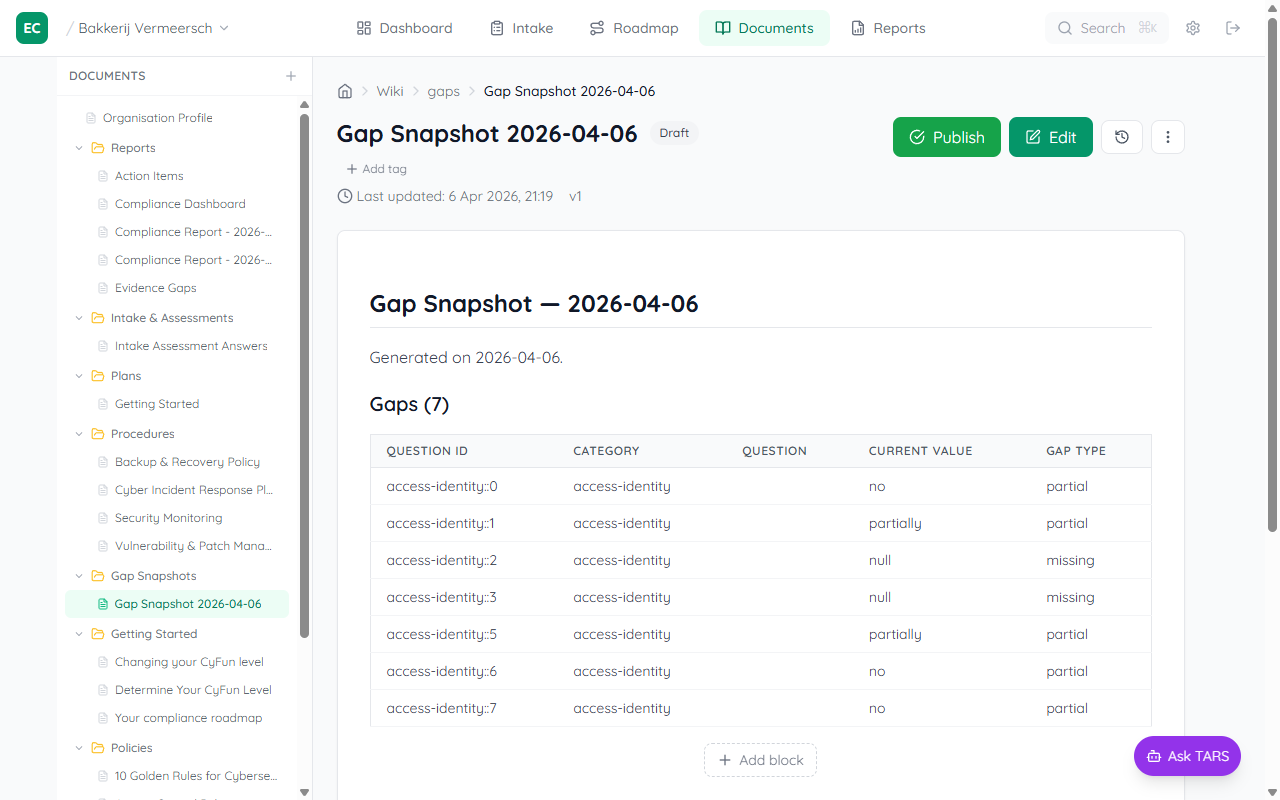
The Roadmap tab is your compliance sprint board. Work moves left to right — from Backlog through active Sprints to Audit-Ready — as you complete tasks, collect evidence, and close gaps.
Board columns
- Backlog — All compliance framework items not yet assigned to a sprint
- Sprint N (Active) — Your current working sprint with items in progress
- Done — Audit-ready items with verified evidence
The board
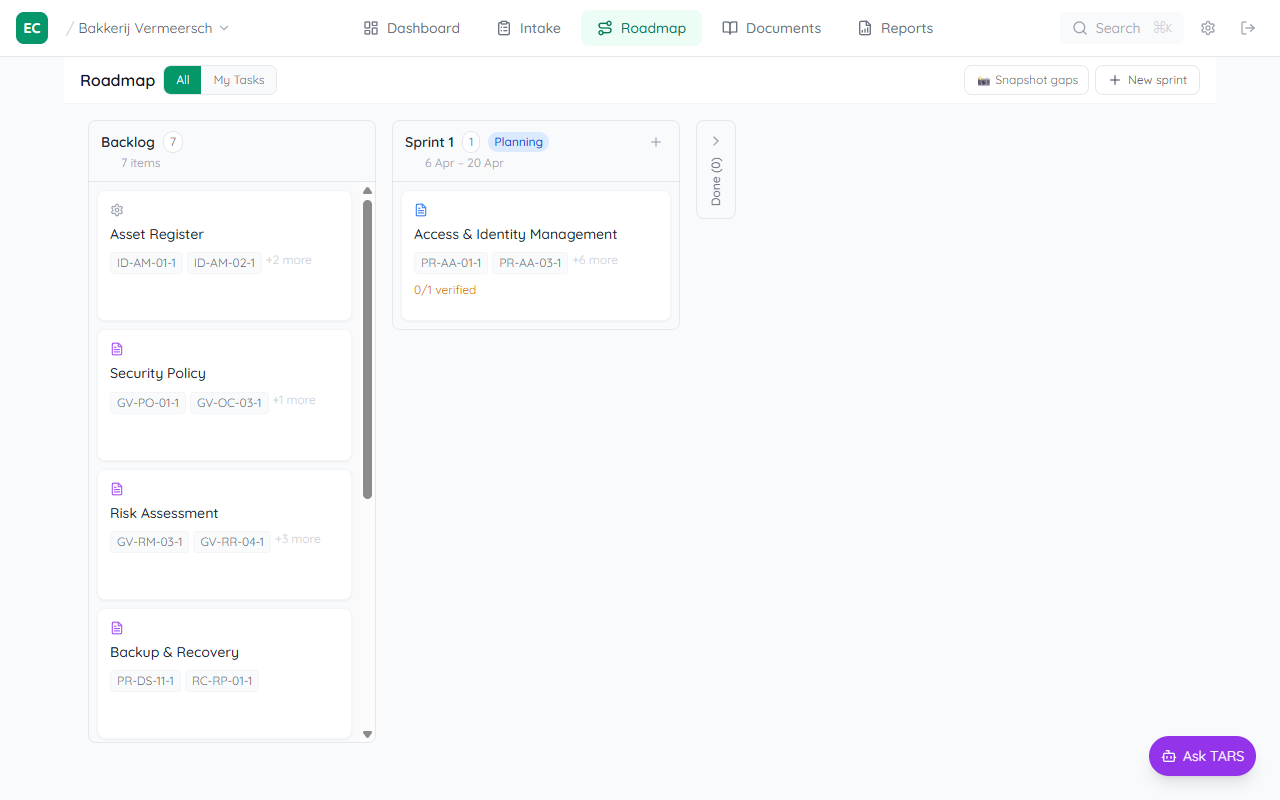
The Roadmap opens as a horizontal Kanban board. The Backlog column lists every framework item not yet planned, grouped by control area. Active sprints appear to the right, and the Done column (collapsed) holds completed audit-ready work.
Use All / My Tasks to switch between the full board and your own assigned items. Use + New sprint to create a sprint, and 📸 Snapshot gaps to freeze the current gap list as a wiki page for audit trail.
Assigning items to a sprint
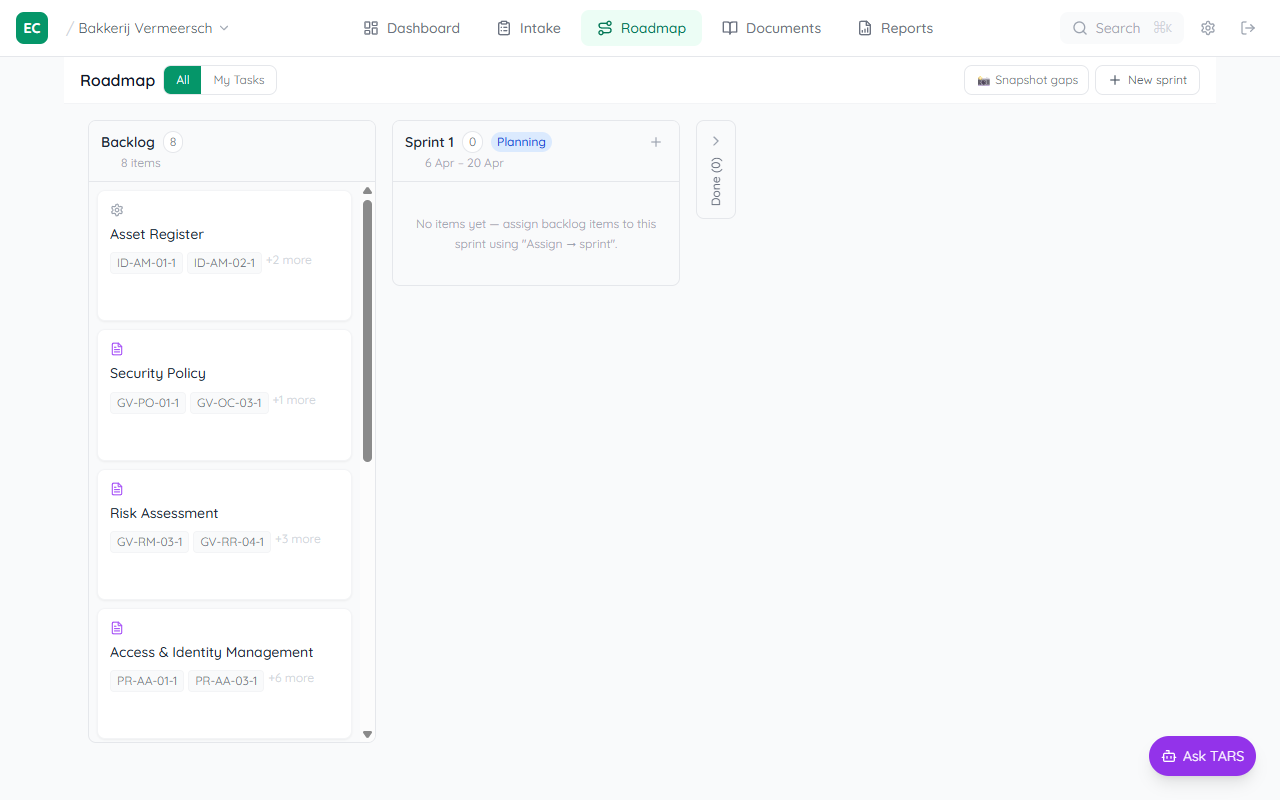
Every item in the Backlog shows its title, associated control IDs, and an effort indicator. Click Assign → sprint on any backlog card to pick which sprint to move it to.
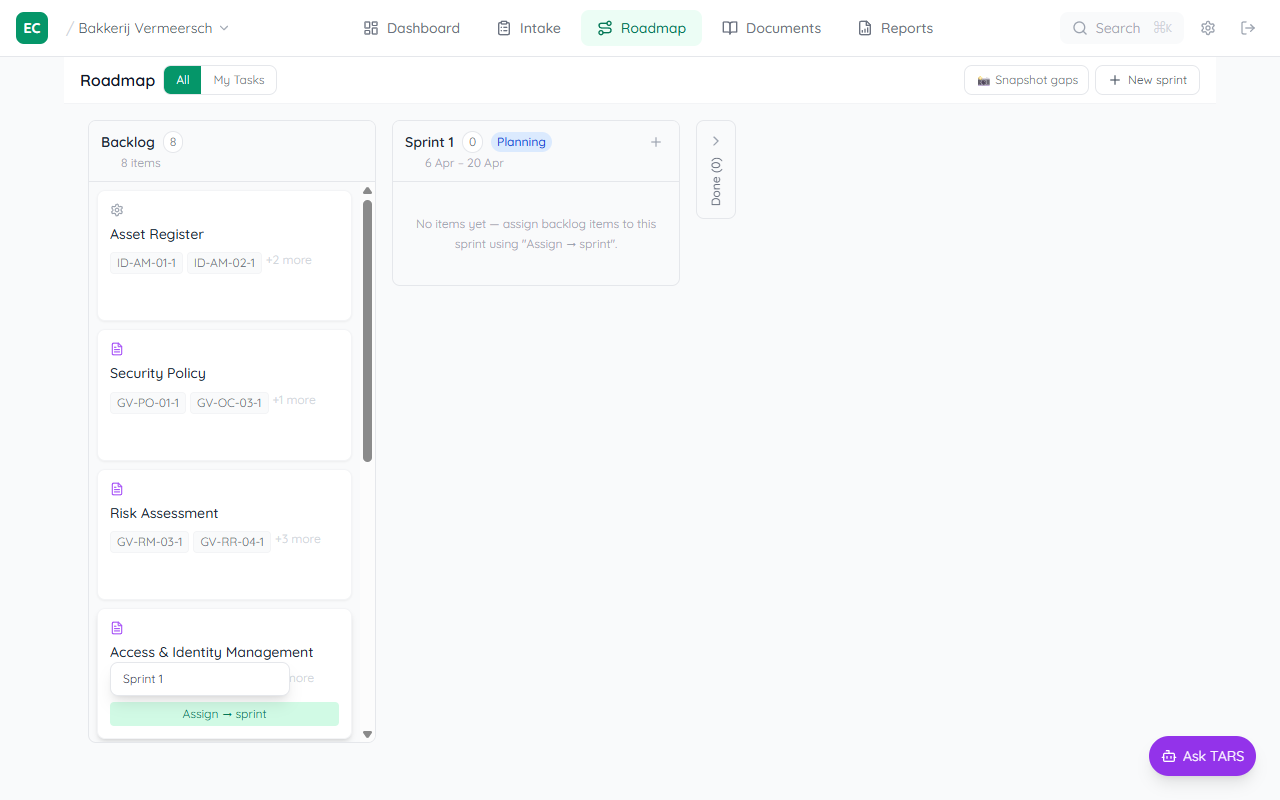
Once assigned, the item disappears from the Backlog and appears in the sprint column with a ↳ To Do sub-status pill.
Sprint column and sub-statuses
Each sprint card shows the item's current sub-status as a coloured pill. Progress moves through four stages:
- ↳ To Do — not started yet
- ↳ In Progress — actively being worked on
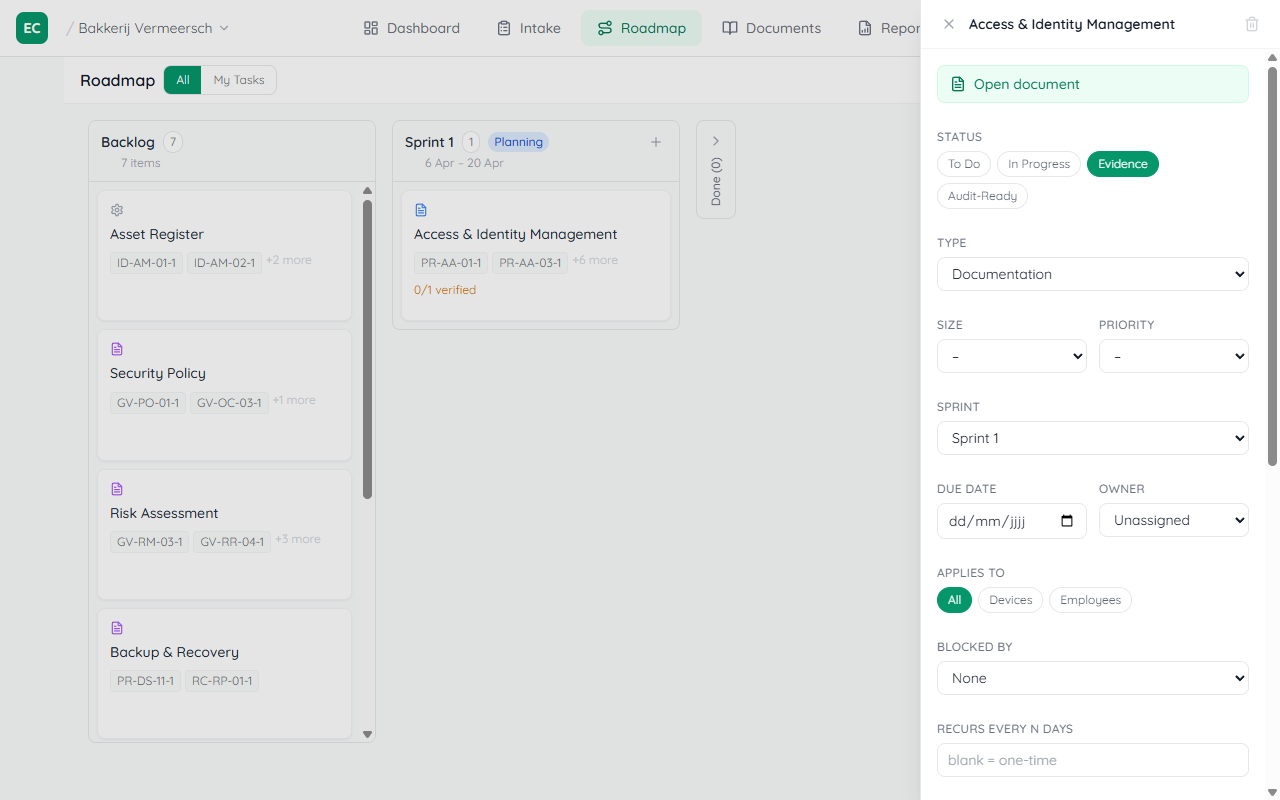
- ↳ Evidence — work done, evidence being collected (shows 📎 N/M verified)
- ↳ Audit-Ready — all evidence verified
Item detail panel
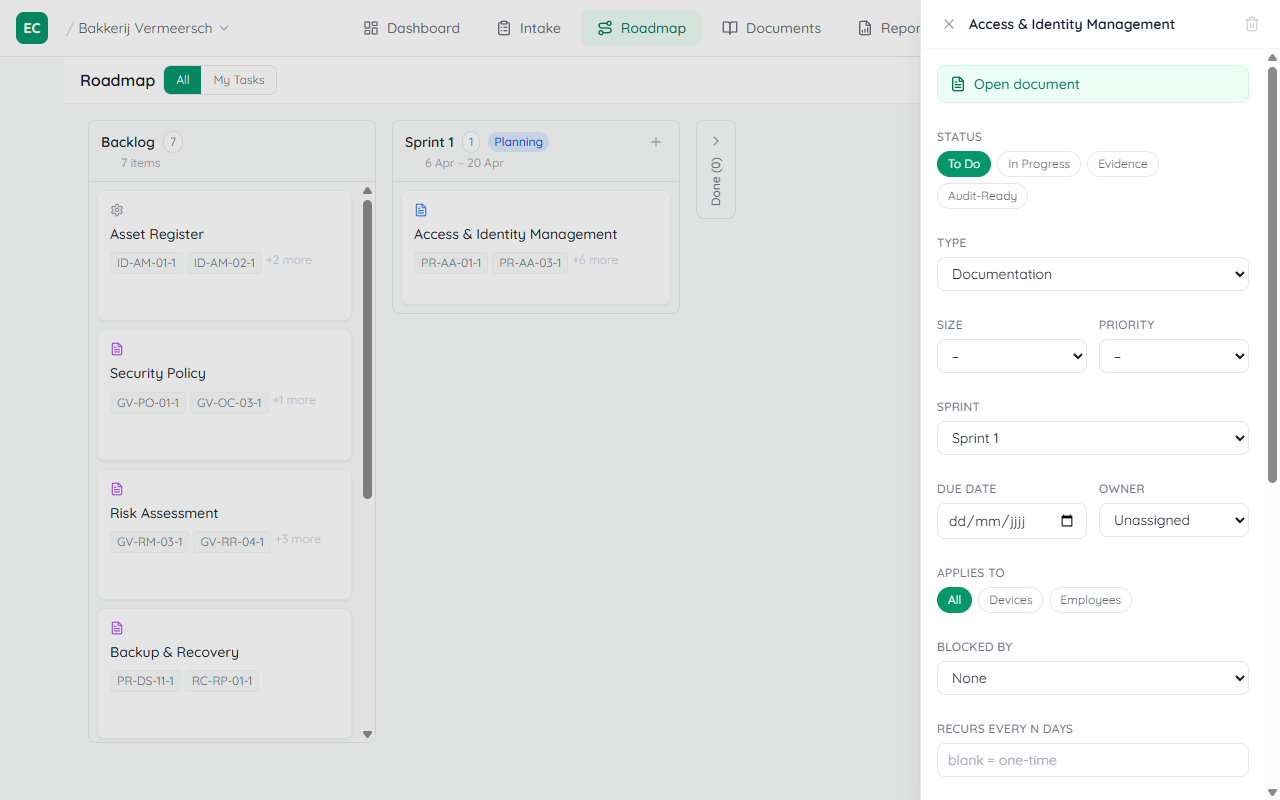
Click any sprint card to open the detail panel on the right. From here you can update all fields without leaving the board:
- Open document — if this action has a linked policy or procedure, a blue button appears at the top of the panel to jump directly to the document in the Documents tab
- Status — move between To Do / In Progress / Evidence / Audit-Ready
- Owner — assign a team member responsible for this item
- Blocked by — mark a dependency on another sprint item
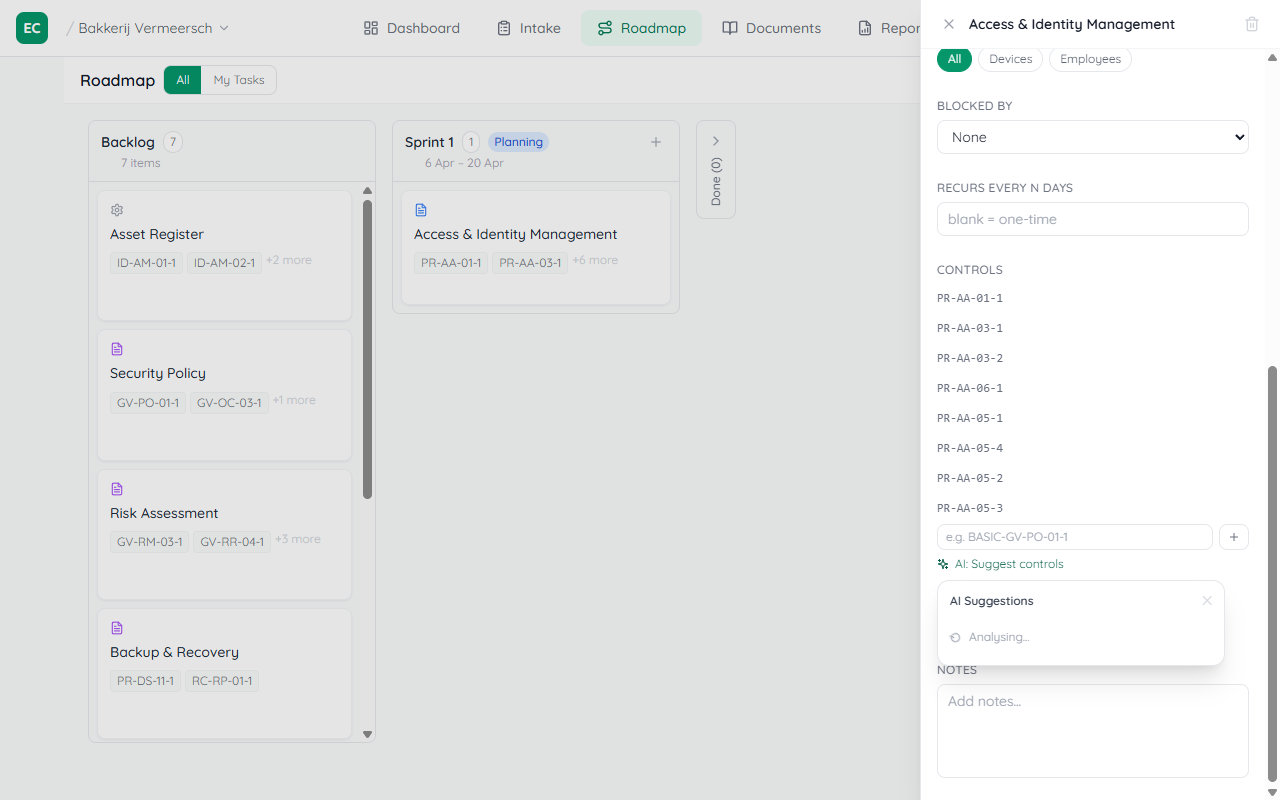
- Controls — see which CyFun controls this item addresses; add or remove with the text input
- Applies to — select which entity types this action covers (All, Devices, Employees, Applications). Click a type pill to restrict scope, then type a group expression (e.g.
IT+management,!contractor) - Evidence — add checklist items that need to be verified before marking audit-ready
- Recurs every N days — for recurring compliance tasks (e.g. backup tests every 90 days)
- Notes — free-text field for context, reminders, or links
Collecting evidence
Set the item status to Evidence, then click Add evidence item to list what needs to be verified — e.g. "Security policy signed by management" or "Upload policy to wiki". Each item gets a checkbox. The card on the board tracks progress as 📎 N/M verified.
When all evidence items are checked, a Mark audit-ready button appears in the panel. Clicking it moves the item to Audit-Ready and automatically updates the linked compliance gaps — the controls addressed by this item are marked as proven in the assessment.
Auto-close gaps
When you mark an item Audit-Ready, the platform automatically closes the linked assessment gaps — no need to go back to the Intake tab and manually update answers. The compliance score updates immediately.
AI control suggestions
In the detail panel, click AI: Suggest controls next to the Controls section. The AI reads the item title and notes and returns a ranked list of CyFun controls it likely addresses. Select any suggestions to add them to the item.
My Tasks
Click My Tasks at the top of the board to filter to only items assigned to you. This is the view a team member uses to see their own work without the noise of the full board. Items with no owner are hidden.
Ending a sprint
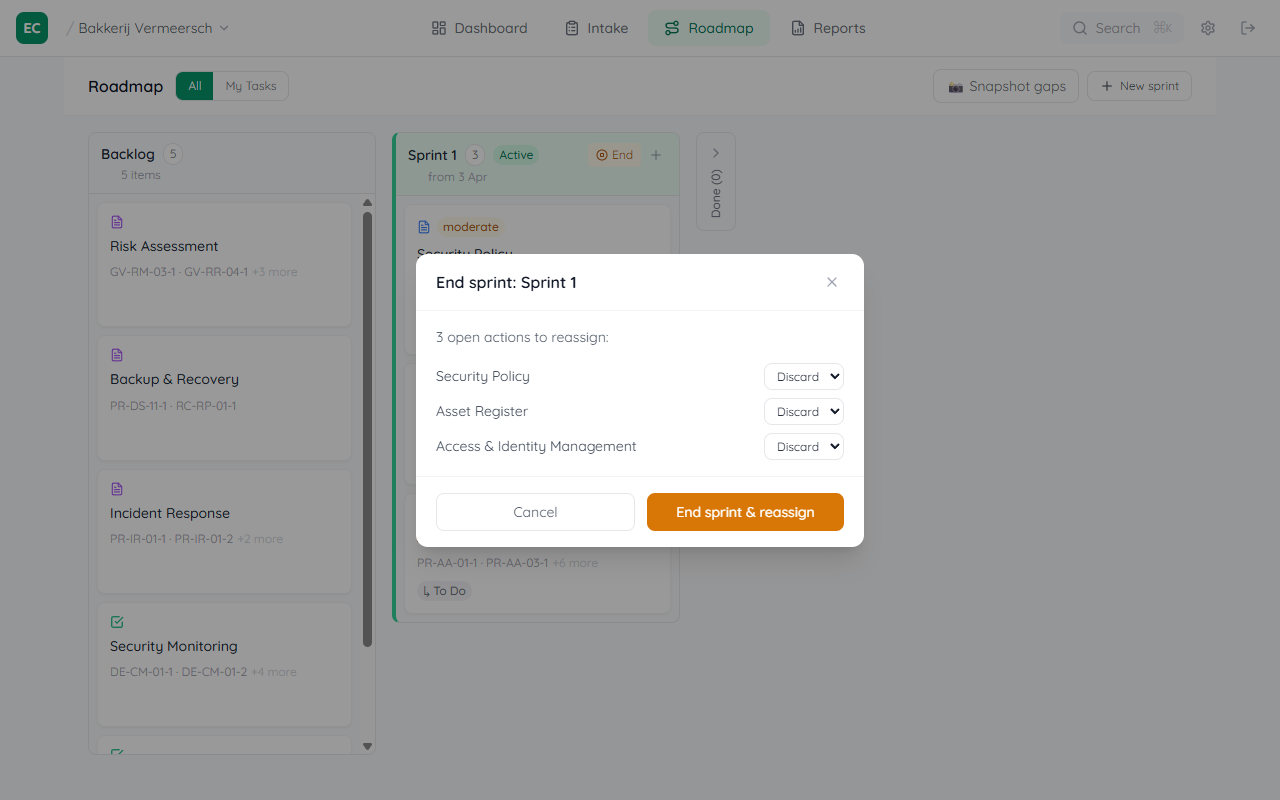
When the sprint period is over, click End sprint in the sprint column header. A modal lists all open items and lets you choose what to do with each: move to the next sprint or discard. Items already Audit-Ready are automatically kept in Done.
Gap snapshots
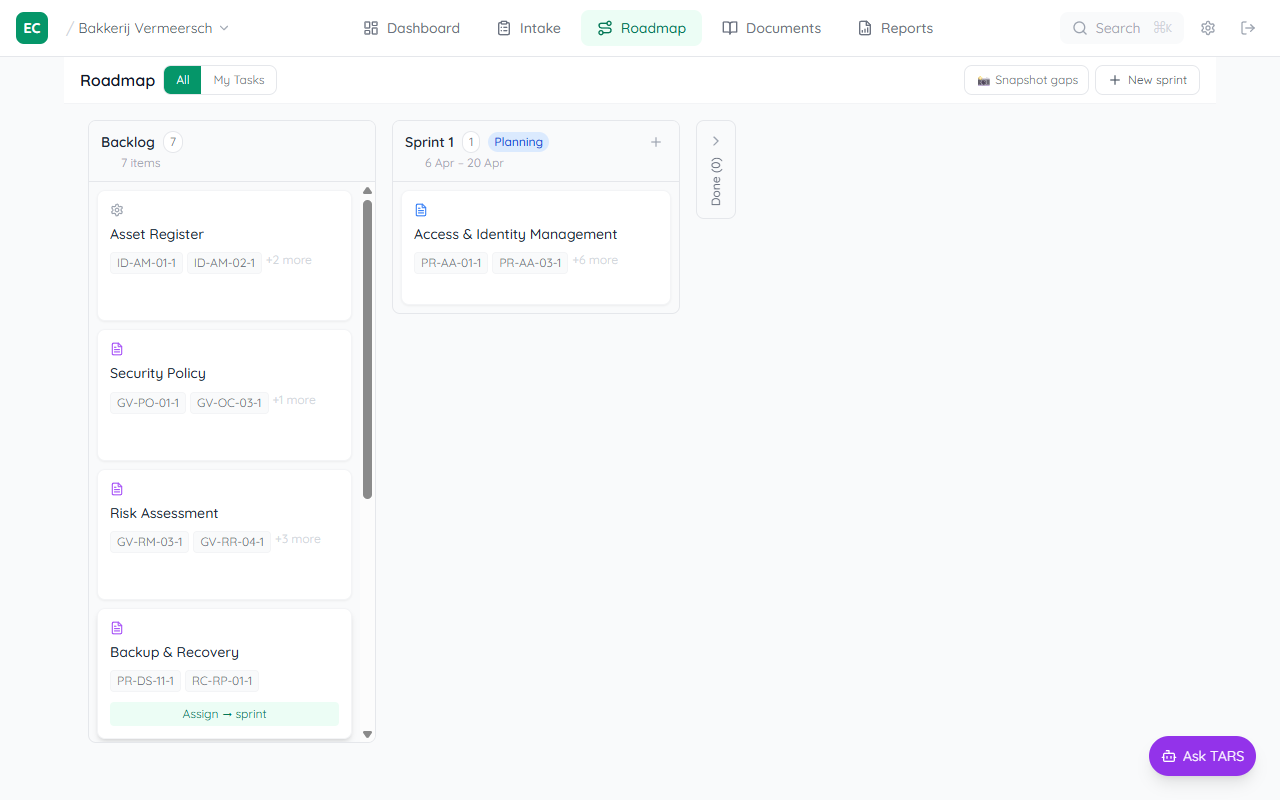
Click 📸 Snapshot gaps at any time to create a dated wiki page at gaps/snapshot-YYYY-MM-DD. The page contains a table of all current open gaps with their severity, category, and gap type. Use snapshots to compare where you were at the start of a sprint versus where you are now.